

Canvas Apps, a key capability within Microsoft Power Apps, offer a flexible and intuitive approach to building custom applications without the need for extensive coding knowledge. In this blog, we will walk through the steps involved in creating a Canvas App, explore practical use cases, and explain how it integrates seamlessly with the Power Platform as well as a wide range of third‑party connectors.
What Is a Canvas App?
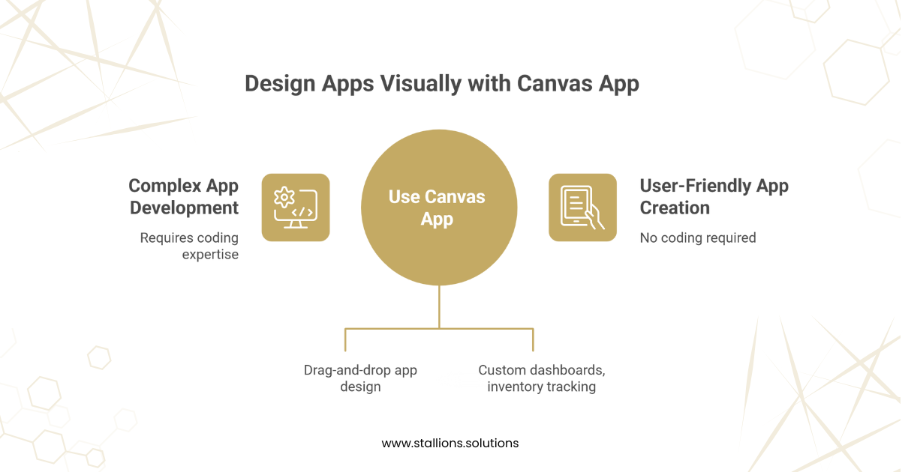
A Canvas App in the Power Apps suite allows users to design applications through a visual, drag‑and‑drop interface. This makes it ideal for a wide range of scenarios such as creating custom dashboards, tracking inventory, managing data entry, and much more.
Why Use Canvas Apps?
Canvas Apps empower business users to build solutions that streamline processes, reduce manual work, and improve overall efficiency. They also contribute to significant time and cost savings.
Consider this example:
An employee spends around 10 hours each week on data entry, earning $28 per hour. For an organization with five employees performing the same task, Canvas Apps can eliminate up to 2,600 hours of work annually. This reduction in manual effort results in an impressive yearly savings of approximately $72,800.
How to Create a Canvas App
Creating a Canvas App is a straightforward process that can be broken down into the following steps:
1. Sign in to Power Apps
Begin by signing in to Microsoft Power Apps. You can access it through Office 365, Microsoft 365, or a dedicated Power Apps license. Once logged in, you’re ready to start building.
2. Start a New App
After entering the Power Apps environment, navigate to the Create section. Select Canvas app from blank to build your application from scratch and tailor it to your specific needs.
3. Design Your App
The Canvas App designer provides a blank workspace where you can visually build your user interface. Add components such as buttons, labels, text input fields, galleries, and other controls. Customize the layout, colors, and styling to match your desired look and functionality.
4. Connect Data Sources
Canvas Apps can integrate with a wide range of data sources, including SharePoint, Microsoft 365, Dynamics 365, SQL databases, and more. These connections allow your app to read, write, and update data as required.
5. Add Functionality
Use Power Apps formulas to define how your app behaves. These formulas determine how controls interact with each other, how data is processed, and how users navigate through the app. This step brings your app’s logic and workflows to life.
6. Test and Publish
Once your app is built, perform thorough testing in the Power Apps environment to ensure everything works smoothly. Make any necessary adjustments based on your test results. When you’re confident in the app’s performance, publish it so others in your organization can begin using it.
Practical Uses of Canvas Apps
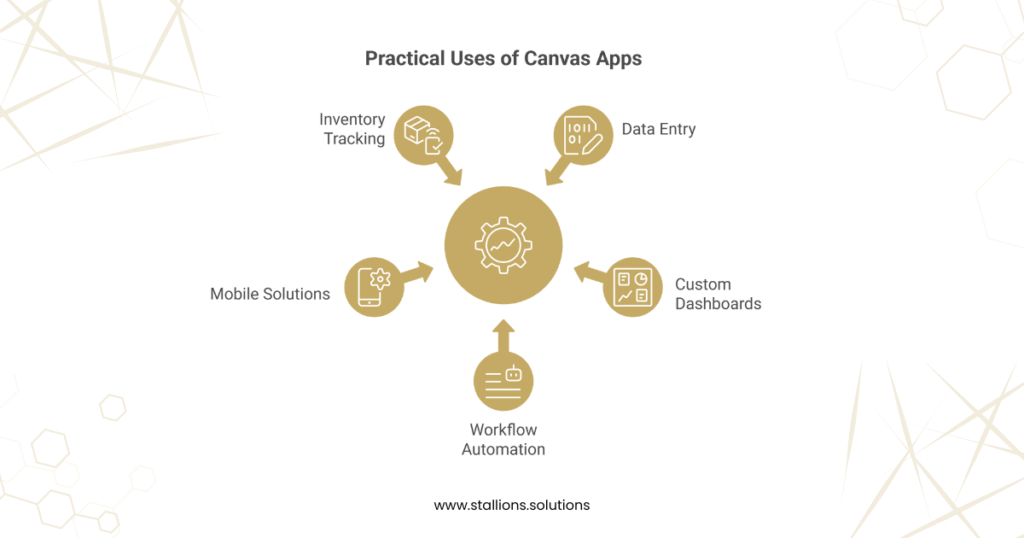
Canvas Apps support a wide range of practical business scenarios, including:
- Data Entry and Management
Transform manual data entry tasks into streamlined digital processes, making data collection and management more accurate and efficient.
- Custom Dashboards
Build personalized dashboards that showcase key performance indicators (KPIs) and vital organizational insights.
- Workflow Automation
Simplify and automate business workflows to boost productivity and reduce repetitive manual effort.
- Mobile Solutions
Design mobile-ready apps that enable employees to access information and complete tasks anytime and anywhere.
- Inventory Tracking
Create applications to monitor and manage inventory, improve accuracy, and reduce the likelihood of errors.
Compatibility with the Power Platform and Third‑Party Connectors
Canvas Apps integrate seamlessly with the Microsoft Power Platform, which includes Power BI, Power Automate, and Power Virtual Agents. This integration provides several key advantages:
- Power Automate Integration: Easily initiate automated workflows in Power Automate directly through your Canvas App, enabling task automation and smoother data updates.
- Power BI Integration: Embed Power BI dashboards and reports inside your Canvas App, allowing users to access data visualizations and insights without leaving the application.
- Power Virtual Agents Integration: Add chatbots and virtual assistants created in Power Virtual Agents to your Canvas App, providing users with interactive support and guided experiences.
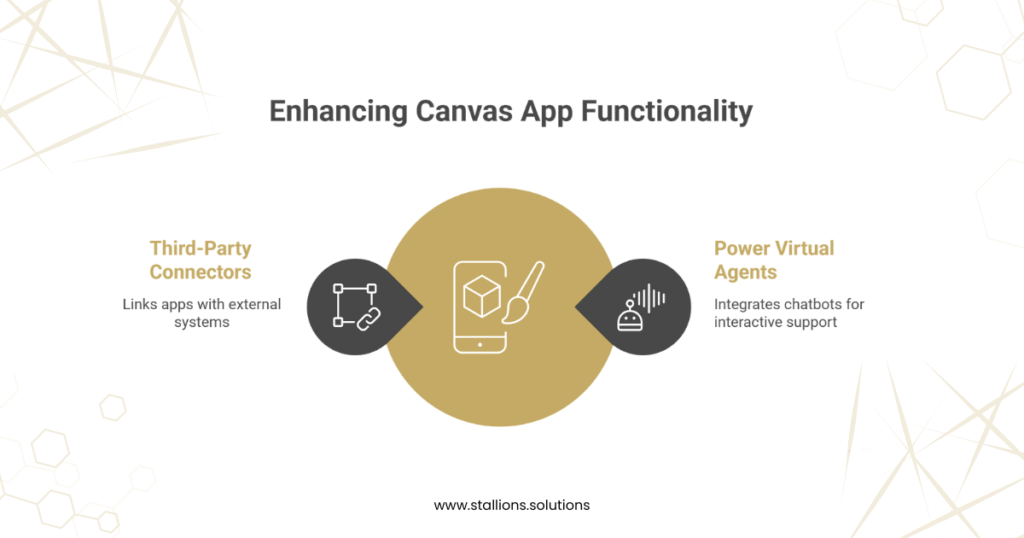
In addition to native Power Platform integration, Canvas Apps also support a wide variety of third‑party connectors. These connectors allow you to link your app with external systems and services, greatly extending its functionality and integration potential.
Conclusion
Microsoft Power Apps Canvas Apps offer an intuitive and flexible way to build customized applications that align with your organization’s specific requirements. With strong integration across the Power Platform and extensive support for third‑party connectors, they empower teams to boost productivity, optimize workflows, and unlock new opportunities.
Whether you are a business user looking to simplify processes or an IT professional aiming to deliver tailored solutions, Canvas Apps provide a powerful foundation for solving challenges and driving meaningful results.