

Artificial Intelligence (AI) is transforming the way businesses work speeding up processes, improving decision‑making, and helping teams work smarter. The good news? You don’t need to be a developer to bring AI into your Dynamics 365 environment. Microsoft has built powerful no‑code and low‑code tools that allow anyone business users, analysts, consultants to apply AI to real business scenarios.
In this end‑to‑end guide, you’ll learn everything about implementing AI in Dynamics 365 without coding using tools like Microsoft Copilot, Power Automate, Power Apps, AI Builder, and out‑of‑the‑box Dynamics intelligence.
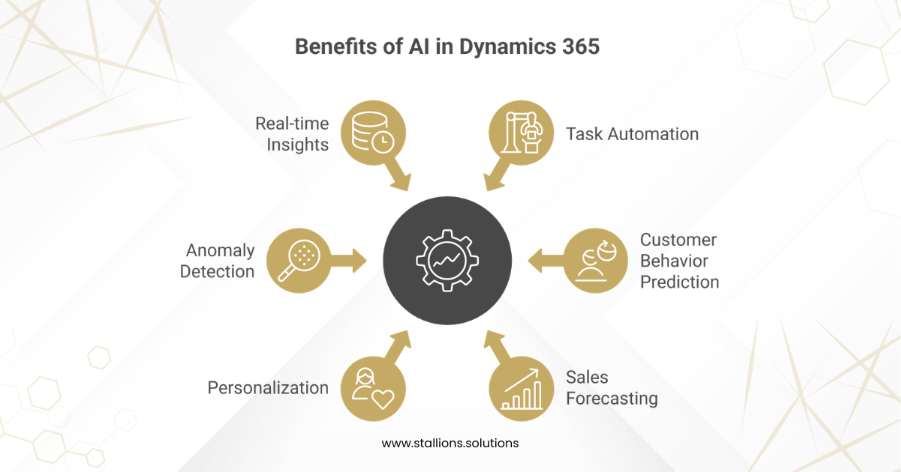
Why Use AI in Dynamics 365?
Microsoft has integrated AI directly into Dynamics 365 so businesses can:
- Automate repetitive tasks
- Predict customer behavior
- Improve sales forecasting
- Personalize customer experiences
- Detect patterns and anomalies
- Improve decision‑making with real‑time insights
And all of this can be done without writing a single line of code.
1. Use AI Builder for No‑Code AI Models
AI Builder is a ready‑made toolkit inside Power Platform that allows you to build and deploy AI models in Dynamics 365 without programming.
Common AI Builder Features You Can Use in Dynamics 365:
✔ Prediction Model
Predict outcomes like:
- Will a lead convert?
- Will a payment be late?
- Which customers are at risk of stopping our service?
✔ Text Recognition & Document Processing
Automatically extract info from:
- Invoices
- Receipts
- Forms
- Contracts
✔ Sentiment Analysis
Analyse emails, surveys, and messages to understand customer tone.
✔ Category Classification
Categorise tickets, customer inquiries, or complaints automatically.
Best Part:
You simply provide examples, train the model, and deploy it, no coding knowledge needed.
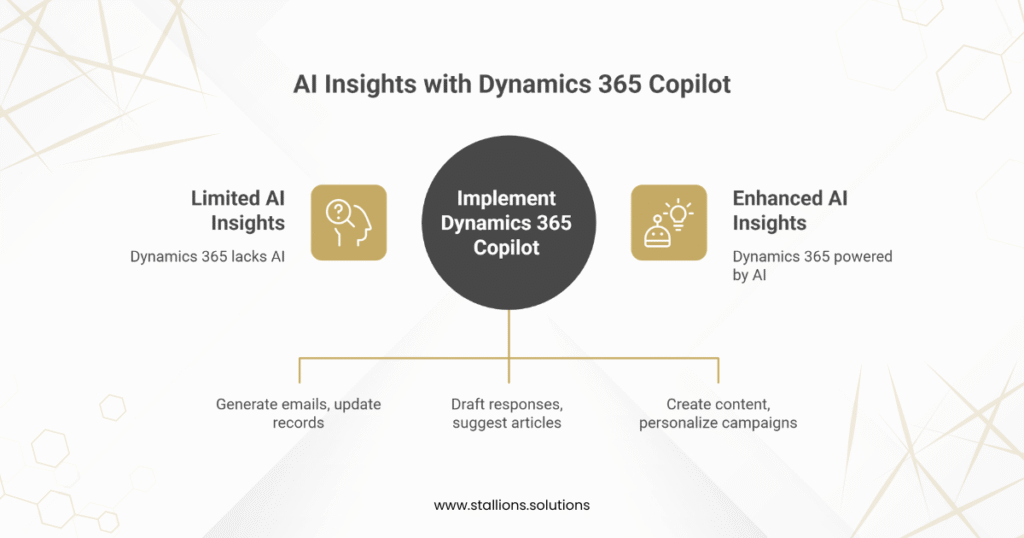
2. Enable AI Insights Using Dynamics 365 Copilot
Microsoft Copilot brings generative AI directly into Dynamics. It assists users in real time across various modules:
Sales
- Generate emails
- Auto‑update CRM records
- Provide conversation insights
- Summarise meetings
Customer Service
- Draft responses
- Suggest knowledge articles
- Summarize cases
- Improve agent productivity
Marketing
- Create creative content
- Personalize campaigns
- Generate customer segments
Using Copilot is truly the simplest way of implementing AI in dynamics 365 without coding since everything is already built‑in.
3. Use Power Automate to Create AI‑Driven Workflows
Power Automate allows you to build intelligent workflows that connect Dynamics 365 to AI features.
Examples of no‑code AI workflows:
AI‑powered email routing
Use AI Builder to analyze email content → Automatically assign to the right department in Dynamics 365.
Automatic data extraction
Read an invoice using AI Builder → Create records in Dynamics 365 Finance.
Sentiment‑based escalations
If customer sentiment is “negative,” Power Automate can:
- Notify a manager
- Add a tag to the case
- Assign it to a senior agent
All of this is done using drag‑and‑drop workflow actions.
4. Use Power Apps to Build AI‑Powered Interfaces
Power Apps allows you to create internal apps that use AI Builder models.
For example:
Build a Customer Feedback App
Use AI sentiment analysis to categorize responses and sync results with Dynamics 365.
Create a Product Damage Report App
- Use image recognition to detect damages and automatically log a case in Dynamics.
- Again, no coding required.
5. Use Dynamics 365 Native AI Features
Most Dynamics 365 apps already come with powerful AI:
Dynamics 365 Sales Insights
- Lead scoring
- Opportunity scoring
- Pipeline analysis
Dynamics 365 Customer Service Insights
- Case clustering
- Topic analysis
- Performance insights
Dynamics 365 Finance Insights
- Cash forecasting
- Payment predictions
- Budget variance detection
Simply turn these features on, configure them, and start using them.
6. Real‑World Examples of Implementing AI Without Coding
Customer Service Automation
- AI routes incoming cases
- Copilot suggests responses
- AI Builder extracts info from files
- Power Automate sends updates
Result: Faster resolution, less manual work.
AI‑Smart Sales CRM
- Predictive lead scoring
- Email suggestions
- Real‑time conversation analysis
- Automated CRM data entry
Result: Higher conversion rates.
Operations Automation
- Document scanning and auto‑entry
- Inventory prediction
- AI‑based approval workflows
Result: Streamlined internal processes.
7. Tips for Successful No‑Code AI Implementation
✔ Start with small, clear use cases
✔ Use AI Builder templates instead of training from scratch
✔ Clean your data before training any models
✔ Test as a pilot before organization‑wide rollout
✔ Train employees to use AI tools confidently
Conclusion
Implementing AI in Dynamics 365 without coding is easier than ever. With built‑in tools like Copilot, AI Builder, Power Automate, and Power Apps, anyone can create intelligent processes without technical skills. Whether you want to automate document processing, improve customer service, or enhance sales performance, Microsoft’s no‑code AI tools make the journey smooth and accessible.
If you’re looking to boost productivity, make better decisions, and modernize your business AI in Dynamics 365 is the way to go.