
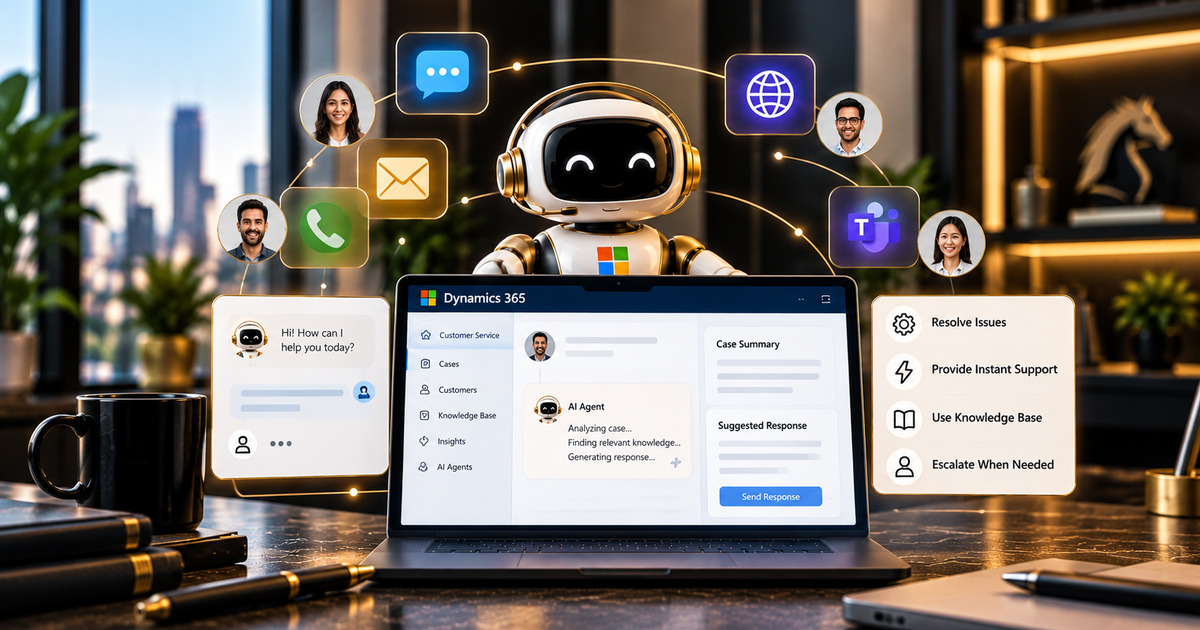
Most customer service teams don’t struggle to get excited about AI agents. They struggle with what comes after the demo, namely switching it on in a real Dynamics 365 environment full of years of half-finished cases, outdated knowledge articles, and routing rules nobody has looked at since the last reorganisation.
That’s where agentic AI projects tend to wobble. The agents themselves work well enough. The outcome depends on how the underlying system is set up.
This guide walks through how to implement agentic AI in Dynamics 365 Customer Service in a sensible order, and it’s deliberately about the rollout, because we’ve already covered what the agents do in our look at Customer Service AI agents.
Why Implementation Matters More Than the Agents
An agent in Dynamics 365 Customer Service only ever works with what your system provides. Case records, account data, contact relationships, entitlements and knowledge articles all feed into its reasoning, so patchy data leads to patchy answers, however clever the model is.
There’s a second reason to take it seriously. These agents are built to act, not just to fetch an article and hand it over. If you give one permission to create a case, update a record or send a notification, it can do so without a human in the middle unless you’ve built in a confirmation step.
Partners who deploy these regularly describe six areas to get right: data and knowledge, service processes, routing and queues, agent actions and security, environments, and monitoring and governance.
It’s a handy checklist, and you can read one of those implementation guides for the full list.
Start With the Data and the Knowledge Base
If you fix only one thing before launch, make it the knowledge base.
Agents that resolve cases or suggest next steps draw on published knowledge articles, and Copilot Studio respects article status, so drafts are normally not served. That’s useful, but it also means any article stuck in draft is invisible to the agent.
Review what’s published, retire what’s out of date, and ensure the articles covering your most common issues are accurate and written in plain language.
Case data deserves the same attention. Duplicate accounts, missing product fields, and cases closed with a single-word resolution all make an agent’s job harder. None of this is glamorous work, and it’s usually where most of the first month goes.
Get Routing, Queues and SLAs Ready
Agents who transfer sessions or assign cases work within your existing queue and capacity model. They don’t create their own.
So the routing you already have becomes load-bearing. Unified Routing determines which queue a case or conversation lands in. If those rules are loose or out of date, an agent will route cases incorrectly at speed.
It’s worth reviewing your work classification, queue definitions and SLA settings before any agent touches a live case, because most teams haven’t set these up with an agent in mind, and the gaps show up quickly.
Switch On the Agents in a Sensible Order
You don’t need to turn everything on at once, and we’d advise against doing so. The prerequisites suggest a sensible sequence.
Start with the Customer Intent Agent. Enable it in the Copilot Service admin centre, then run intent discovery over your past conversations. It will build a library of the topics customers contact you about.
Copilot agents then need to be connected to your knowledge sources, and the intents you want agents to use need the “Use in AI Agent” option switched on. Microsoft’s guide to setting up the Customer Intent Agent covers the steps.
Next is the Case Management Agent. For autonomous case resolution to work, intent must be enabled first. It can then identify the intent of an incoming email linked to a case.
A refund request is the classic example. The integration guide walks through it, and our piece on building AI agents in the Power Platform covers the building side.
Decide What the Agent Is Allowed to Do
This is the step that’s easiest to skip and the one most worth getting right.
Every action you enable, whether that’s creating a case, updating a record, closing a ticket, or sending a message, is something an agent might perform without anyone checking.
For low-risk actions, that’s fine. For anything involving money, refunds, or a complaint that could escalate, build in a confirmation or approval step so a person sees it first.
Identity matters here as well. Copilot Studio creates a Microsoft Entra Agent ID for each new agent, giving you a clear identity to attach permissions and audit trails to.
We explain why that matters in our guide to securing AI agents with Microsoft Entra ID, and the same discipline applies to the environments and policies around them, covered in governing the Power Platform at scale.
Test Properly Before Go-Live
Don’t test an agent on tidy sample data. Set up a UAT environment that mirrors production, with your real queue configuration and routing rules, and run it against a set of cases that reflects how messy your genuine work is. Include the awkward cases, such as unclear emails, angry customers, and requests that fall between two categories.
Turn audit logging on before launch, not after. Copilot Studio integrates with Microsoft Purview for audit logging, and you’ll want that record in place from the first live conversation.
Testing this way also reveals configuration gaps that would otherwise only appear after go-live, when they’re far more expensive to fix.
Keep Governing After Launch
Go-live isn’t the finish line for any Dynamics 365 Customer Service rollout. Watch what the agents are doing, review a sample of their work each week at first, and keep an eye on how often a human must step in to correct something.
If your contact channels overlap with voice, our guide to the Dynamics 365 Contact Centre covers how that side fits together.
This is the part where a partner earns its keep. Our D365 implementation team sets up the data, routing and agent configuration, and our AI Enablement Programme takes teams from first experiment to production without the usual false starts.
As an ISO 27001-certified Microsoft partner, we ensure governance is in place before any agent touches a live customer.
Final Thoughts
Agentic AI can change how a service team works, but the results depend on the groundwork. Clean knowledge, sound routing, sensible limits on what an agent may do, and proper testing matter far more than which agent you switch on first.
Get that right, and the agents look impressive. Skip them, and you’ve automated a mess, even faster than before.
If you’d like help planning the rollout, book a free assessment, and we’ll look at your Dynamics 365 setup and tell you honestly where to start, no hard sell.
Frequently Asked Questions
Where should we start when implementing agentic AI in Dynamics 365 Customer Service?
With your data and knowledge base, agents reason over your case records, accounts and published knowledge articles. Ensure your data is clean and your articles are up to date before switching any agent on.
Which agent should we enable first?
We suggest the Customer Intent Agent because intent discovery builds the library that other agents rely on. The Case Management Agent’s autonomous resolution requires intent to be enabled first.
Can an agent act without a human approving it?
Yes, unless you configure a confirmation or approval step. Every action you enable, such as creating a case, closing a ticket, or sending a notification, can run without a representative. Decide which actions require sign-off.
Do we need a test environment?
We’d say so. A UAT environment with your real queues and routing rules, tested against messy real-world scenarios, reveals problems before customers encounter them.
How do we keep agents under control after launch?
Give each agent its own identity with a Microsoft Entra Agent ID, enable audit logging in Microsoft Purview, regularly review work samples, and track how often people have to correct them.