
The slow part of building a flow has never been the logic. It’s working out which trigger to pick, which of four similar-looking actions does the job, and why the connection has a red exclamation mark on it.
Copilot in Power Automate goes straight to that. You describe what you want in ordinary English; it drafts the flow, and you tidy it up. It’s a genuine time saver, and we use it ourselves. It’s also a nice way to create a mess faster than you could by hand.
This guide covers how to create Power Automate workflows with Copilot, how to write prompts that work, what it can’t do yet, and what we check before any AI-built flow goes near a real process.
What Power Automate Copilot Actually Does
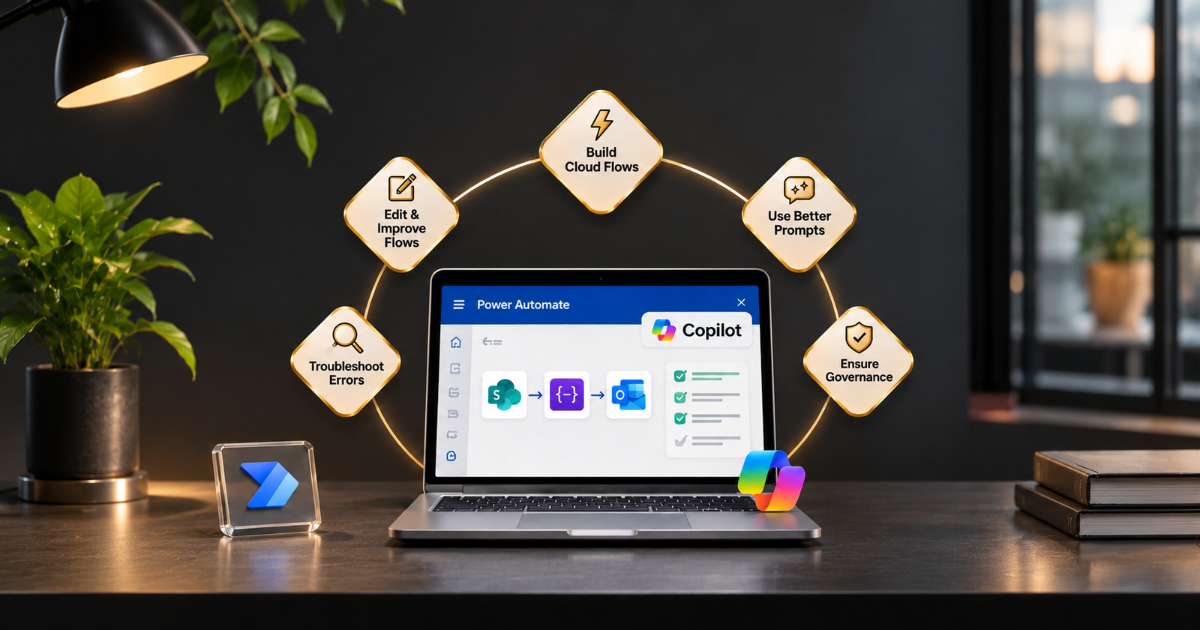
There are three jobs. It builds cloud flows from a description, edits flows you already have, and helps you work out what went wrong when one fails.
According to Microsoft’s documentation, Copilot understands the intent behind your prompt, builds a flow around it and sets up connections for you so you reach something working quickly.
It runs on Azure OpenAI Service. In the designer, you can ask it to change, replace, or delete actions, and to answer questions about the flow itself. First, Copilot only works in the new designer, not the classic one.
There’s a second route called Describe it to design it, which builds a cloud flow from a description. Teams users can do something similar in the Workflows app. Both only cover cloud flows. Other flow types aren’t included.
Creating Your First Flow
The mechanics are straightforward. You’ll be done in minutes.
Sign in to Power Automate and stay on the Home page, where there’s a field asking you to describe your automation. Type what you want, then select Generate.
Copilot proposes a structure, including a trigger and one or more actions, which you can refine by adding more detail. Connections that need attention show a red exclamation mark. Click each one and follow the instructions.
When it looks right, choose Create flow. The designer opens with a Copilot pane on the right. Save it, then test it before you tell anyone it works (people skip that last step more often than you’d think).
Check region availability before you build a plan around it. This depends on your environment’s region and whether you use a work or school account. Language support is mainly in English.
Prompts That Work and Prompts That Don’t
What you get back reflects what you type. A vague prompt yields a vague flow.
Here’s a weak one, “Send an email when something happens in SharePoint.” Copilot has to guess what “something” is, who gets the email and what it should say. It guesses, and you spend ten minutes correcting it.
Compare it with this: “When a new item is created in the SharePoint list ‘Purchase Requests’ and the Amount field is over 5,000, send an email to the finance mailbox with the title and amount in the subject line.” Now Copilot knows the trigger, the condition, the recipient and the content.
A few habits help. Name the actual systems, lists and fields. Say what should happen when the condition isn’t met, not only when it is. Build in steps: ask for the basic flow first, then add conditions and extra actions, one prompt at a time.
That’s how Microsoft’s own guidance suggests working, and it makes mistakes much easier to spot.
Editing and Fixing Flows You Already Have
This is the part we think is underrated. Everyone talks about building from scratch, but most real work is maintaining flows written two years ago that left no notes.
Open a flow in the new designer and ask Copilot, “What does my flow do?” It walks you through the logic, which is a quick way to understand something you inherited.
You can ask it to add a condition, swap an action, or wrap steps in a Scope with run-after settings for proper error handling. When a test run or a failed run in the history throws an error, the Troubleshoot in Copilot feature can help you find and fix it.
It’s good, not magic. Microsoft’s guidance says Copilot treats each flow in isolation, so if your flow calls a child flow or relies on another flow’s output, it won’t see the bigger picture. For a nested expression that combines several functions, we’ve sometimes found it quicker to write the expression by hand than to argue with the prompt.
The Review Step That Is Often Overlooked
An AI-built flow can look completely right and still do the wrong thing. Most problems we see start here.
Read every action. Check that the trigger fires when you expect and only then. See what happens when a field is empty, when a list returns nothing, or when two items arrive at once.
Test with realistic data in a non-production environment, including the awkward cases, rather than trusting a single clean test run. If the flow sends emails or updates records, make sure a wrong run can’t do damage, because a loop that emails every customer makes for a bad afternoon.
Be extra careful with anything involving money, personal data or approvals. Those deserve a person who understands the process to read the whole flow, whoever or whatever drafted it.
Governance: Who Is Responsible for This Process?
Easier building means more flows, built by more people. That’s the point, and it’s also the risk.
Copilot sets up connections on your behalf, so flows can end up running under a personal account. When that person leaves, the flow breaks, or it quietly keeps working with access nobody planned.
Decide who owns each flow, which environments people can build in, and how data loss prevention policies apply. Keep business-critical flows in solutions rather than scattered across personal accounts, and retire flows nobody uses.
The identity side matters as much as the flow itself, and our guide to securing AI agents with Microsoft Entra ID covers it. If you’re moving from simple flows towards agents that make decisions, our guide to building AI agents in the Power Platform is the next step.
Where It Could Be Better
It’s English-first. It’s weaker at handling complex branching with many conditions. It can pick a sensible-looking action that isn’t the best for your scenario, and it won’t know your business rules unless you spell them out.
Treat what it produces as a decent first draft from a junior colleague who works very fast and never asks questions, and you’ll get on with it.
How We Assist
Building one flow is the easy bit. Making sure a hundred of them are safe, owned and doing something useful is the hard bit, and it’s what our Power Platform team does for clients. We set up environments, governance and standards, build the flows that matter, and train your people to use Copilot effectively.
Our AI Enablement Programme takes teams from a first experiment to everyday confidence without the usual false starts.
As an ISO 27001-certified Microsoft partner, we make sure governance is sorted before a flow touches live data. Book a free assessment, and we’ll tell you honestly where to begin, no hard sell.
Frequently Asked Questions
Can Copilot build a Power Automate flow from a description?
Yes. You describe the automation in natural language on the Home page or in Describe it to design it, and Copilot drafts a cloud flow with a trigger and actions that you can edit, save and test.
Does Copilot work in the classic designer?
No. According to Microsoft, Copilot in cloud flows is only available in the new designer.
Can Copilot edit or fix an existing flow?
Yes. You can ask it to explain a flow, change actions, add conditions, and help troubleshoot errors. It treats each flow separately, so it won’t recognise dependencies on other flows.
Does Copilot support languages other than English?
It’s optimised for English and has limited support for other languages. Descriptions in other languages may work, but they aren’t officially supported.
Is a Copilot-built flow safe to run straight away?
No. Review every action, test with realistic data in a non-production environment, and check who owns the connections before relying on it.