

The way businesses interact with data is changing rapidly, and so is the need for tools that make insights accessible anytime, anywhere. After introducing Copilot in Power BI Desktop, Microsoft is now taking a major step forward by bringing this innovative feature to Power BI in mobile apps.
Designed for today’s fast-paced professionals, Power BI in mobile apps delivers the same intelligent, intuitive experience, now optimized for your smartphone or tablet. Whether you’re traveling, attending meetings, or working remotely, Copilot in Power BI mobile apps empowers you to explore data, create visualizations, and make informed decisions directly from your mobile device.
In this blog, we’ll dive into what Power BI mobile apps are and how Copilot is revolutionizing mobile analytics making it more intuitive, accessible, and impactful for professionals everywhere.
What are Power BI Mobile Apps?
Power BI in mobile apps makes it simple to stay connected to your data anytime, anywhere. Available for both iOS and Android, these apps bring the full power of data analytics to your fingertips. With Power BI mobile apps, you can access, view, and interact with your dashboards and reports on the go—perfect for professionals who need insights while traveling, in meetings, or working remotely.
Here’s how Power BI mobile apps work:
- Report Creation: Build detailed reports using Power BI Desktop and publish them for mobile access.
- Cloud Dashboards: Design and view interactive dashboards in the Power BI service, ensuring real-time insights wherever you are.
- On-Premises Reports: Access reports hosted on Power BI Report Server directly from your mobile device for secure, enterprise-level analytics.
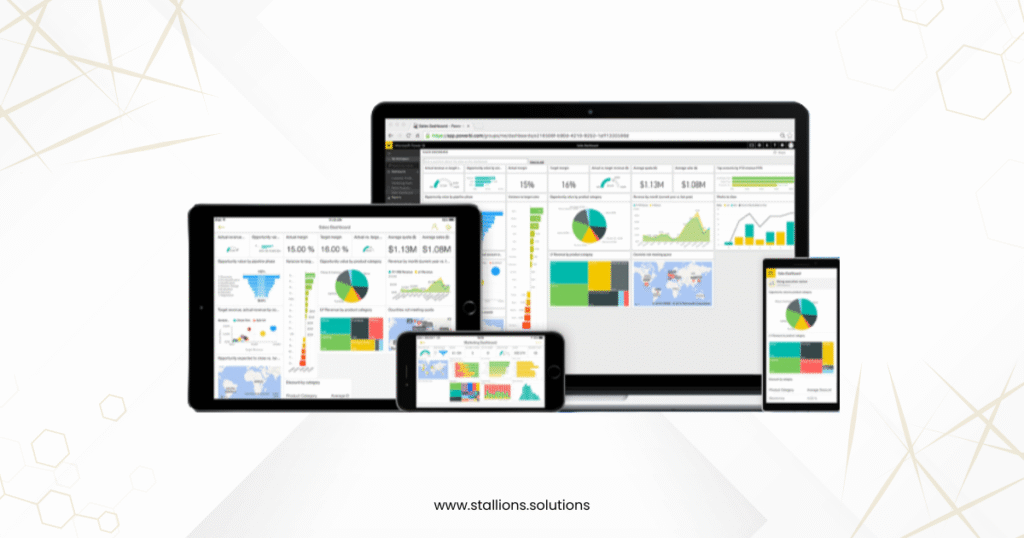
Seamless Access Across Devices with Power BI Mobile Apps
Whether your data lives in the cloud or on-premises, Power BI in mobile apps ensures you stay connected without interruption. With these apps, you can view and interact with reports and dashboards from a wide range of devices including iPhones, iPads, Android phones, tablets, and even Apple Watch. This flexibility means your insights are always within reach, no matter where you are.
With Power BI Mobile, your data is always at your fingertips empowering you to stay informed and make decisions from anywhere, at any time.
Power BI Mobile Apps Features: Insights Anywhere, Anytime
Imagine having the power of your data right in your pocket ready whenever you need it. With Power BI in mobile apps, staying connected to your insights has never been easier. It’s all about enabling smarter decisions, no matter where you are. Let’s explore the key features that make Power BI mobile apps the perfect solution for accessing, analyzing, and leveraging your data on the go.
1. Connect to Your Data
Power BI mobile apps let you monitor your business directly from your phone, ensuring you stay connected to critical insights wherever you are. With seamless access to on-premises data in SQL Server or data hosted in the cloud, you can track KPIs and reports in real time. Offering a complete 360-degree view of your data, Power BI Mobile helps you stay on top of operations. Plus, Microsoft Intune integration ensures robust mobile device and application management, keeping your company’s data secure.
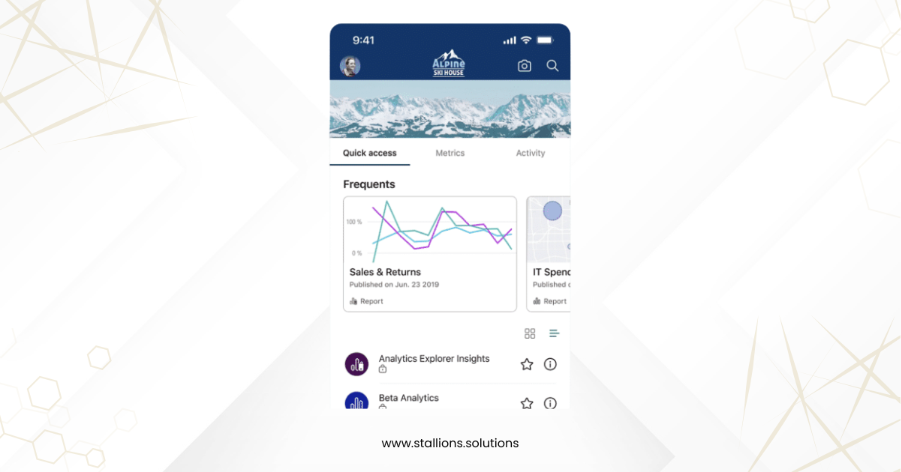
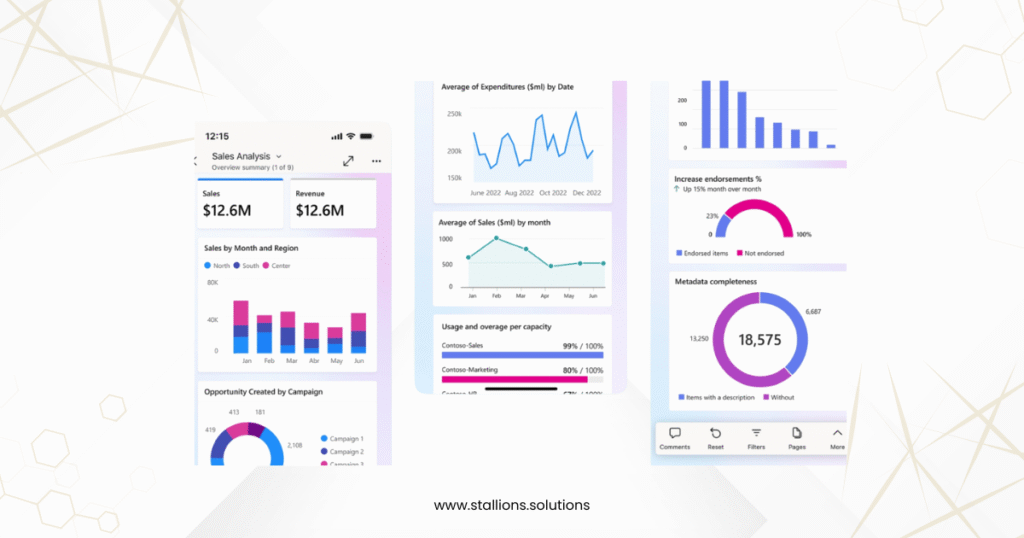
2. Visualize, Explore and Accelerate Things
Power BI in mobile apps transforms the way you interact with your data by delivering fast, intuitive tools for visualization and exploration. Reports created in Power BI Desktop can be viewed live on your mobile device, complete with responsive visuals that accelerate time-to-insight. With natural language query capabilities, you can simply ask questions about your data and get instant answers making it easier than ever to uncover insights. Plus, the app uses geographic location filtering to tailor data views based on your current location, ensuring your insights are relevant and actionable wherever you are.
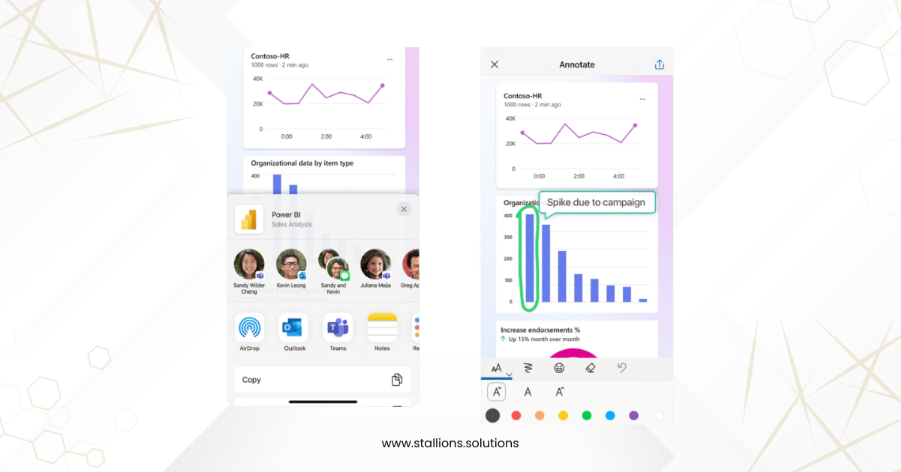
3. Collaborate Seamlessly Anytime, Anywhere
Power BI in mobile apps makes teamwork effortless by enabling real-time collaboration on the go. You can annotate reports directly on your touch-enabled screen, highlighting key insights or emphasizing specific data points to guide your team’s focus. Sharing is just as simple—send live reports and dashboards straight from the app to keep everyone aligned and informed, no matter where they are. With Power BI mobile apps, collaboration becomes faster, smarter, and more effective.
4. Stay Updated with Real-Time Notifications
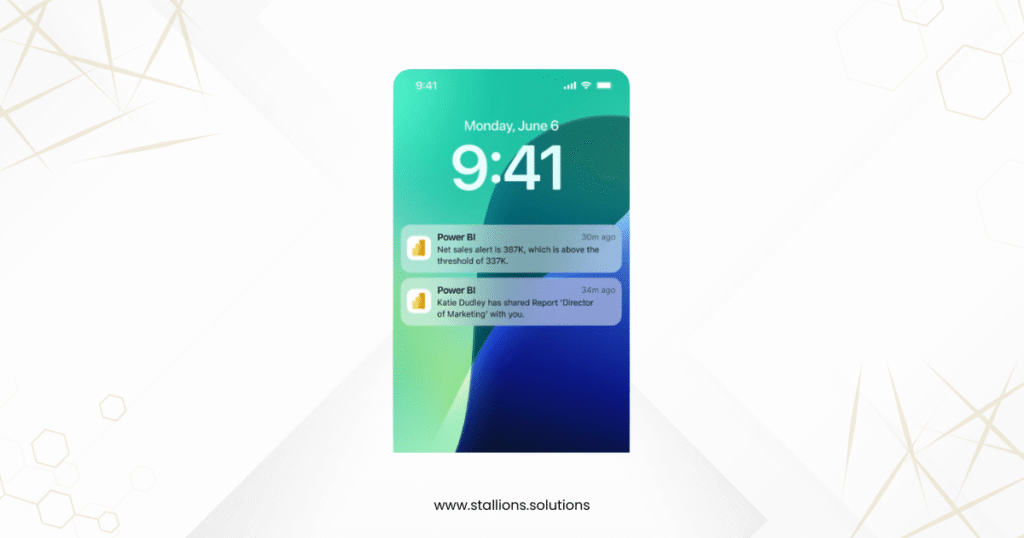
With Power BI in mobile apps, you’ll never miss a critical update. The app delivers push notifications for personal data alerts straight to your device, keeping you informed in real time. For iOS users, 3D Touch support enables quick access to shortcuts right from your home screen. Whether you’re using a phone, tablet, or even Apple Watch, you can view live data updates and stay ahead with the latest insights anytime, anywhere.
5. Secure and Flexible Access to Insights
Power BI in mobile apps offers a seamless way to access your data while maintaining enterprise-grade security. Designed for mobile users, you can author reports in Power BI Desktop or the Power BI service and securely view them on your mobile device. The app provides access to Power BI reports and dashboards, SQL Server Reporting Services content, and on-premises Power BI Report Server all within a single platform. With Microsoft Intune’s mobile device and application management, your company’s data stays protected, giving you peace of mind while staying connected to critical insights.
Introducing Copilot in Power BI Mobile Apps
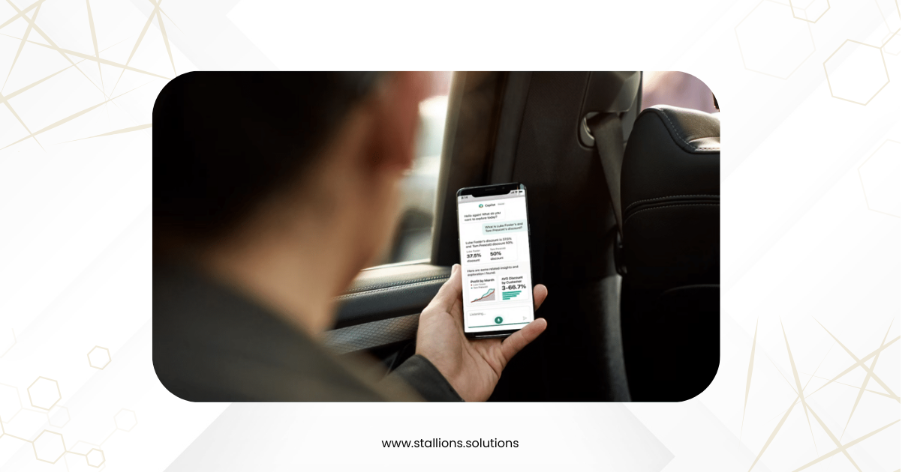
With the new Copilot feature in Power BI mobile apps, analyzing data has never been easier. Copilot brings AI-powered report summaries and actionable insights right to your fingertips, helping you make data-driven decisions anytime, anywhere. Imagine accessing an executive summary of your latest report with a single tap or uncovering quick insights without scrolling through multiple pages and visuals simply by asking Copilot to do it for you. This feature transforms mobile analytics into a smarter, faster, and more intuitive experience.
Getting Started with Copilot in Power BI Mobile Apps: From Summaries to Insights
Using Copilot in Power BI mobile apps to generate summaries and insights is simple and designed to save time while enhancing data-driven decisions. With just a few taps, you can access AI-powered insights directly from your reports. Here’s how to get started:
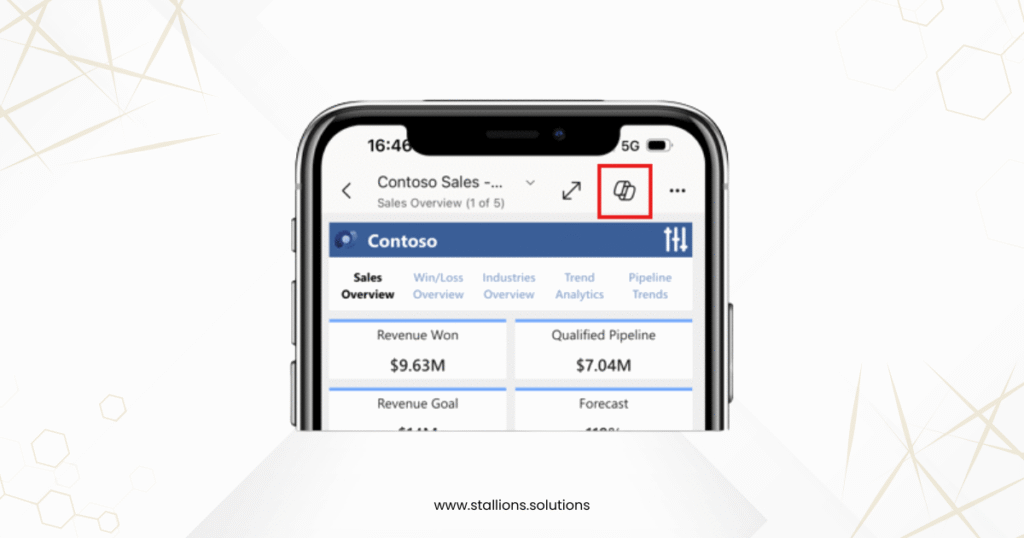
Step 1: Open the Report and Access Copilot
- Open the report you want to analyze and tap the Copilot icon located in the report header.
- Make sure the report meets the Copilot for Power BI requirements; if the icon doesn’t appear, the report may not qualify.
- Apply any filters or slicers before tapping the Copilot button, as Copilot works with the current state of the report.
Step 2: Choose a Prompt
- In the chat window that opens, select the prompt that best fits your needs for generating summaries and insights. Copilot offers predefined prompts to help you quickly uncover key information without manual effort making Power BI in mobile apps even more intuitive and efficient.
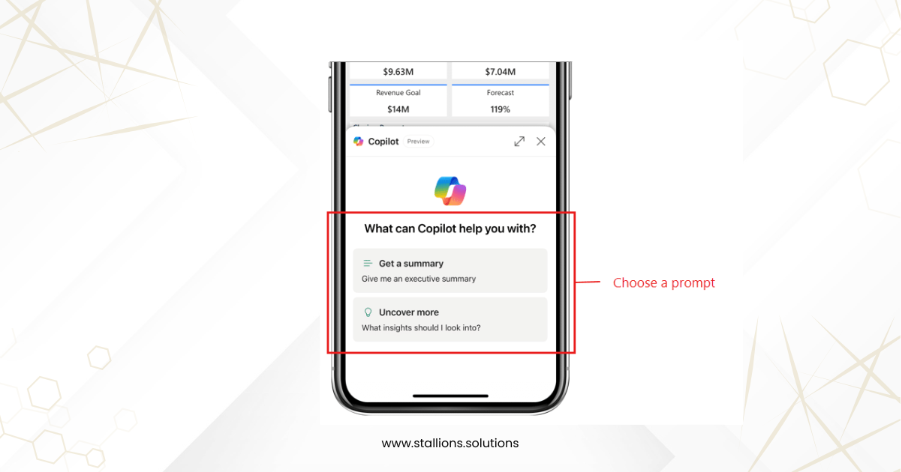
- Copilot will generate its response, which you can view in the chat window.
- If needed, enlarge the chat window to see more of the response.
Step 3: Return to the Report
- Tap the X at the top of the chat window to close it and return to your report.
- Your Copilot chat history stays intact until the report is refreshed or closed.
- To revisit previous prompts and responses, simply tap the Copilot button again.
- The enlarged Copilot chat view provides controls for interacting with responses, making Power BI in mobile apps even more user-friendly.
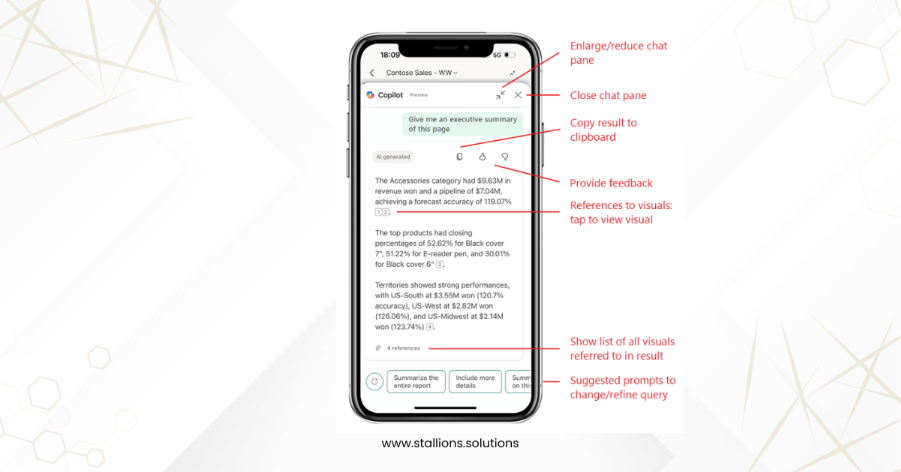
Step 4: Explore Copilot’s Results
- Copilot’s response includes references to visuals used to generate insights.
- Tap any reference to view the associated interactive visual.
- Dive deeper by long-tapping for tooltips or drilling down/up for more details.
- To see all references in one place, tap the References link at the bottom for a hyperlinked list.
Step 5: Refine the Response with Suggested Prompts
- Modify or refine Copilot’s response by tapping one of the suggested prompts at the bottom of the chat window.
- For additional suggestions, tap the refresh button next to the prompt options.
Step 6: Share Copilot’s Results
- Tap the Copy icon at the top of the response to copy it to your clipboard.
- Paste the response into an email, Teams chat, or other platforms for easy sharing.
- The copied response includes a link to the report, ensuring recipients can access the source easily.
Achieve Smarter Analytics with Copilot in Power BI Mobile Apps
The Copilot feature in Power BI mobile apps is transforming how professionals interact with data delivering unmatched convenience, intelligence, and security. With AI-driven capabilities, you can effortlessly generate summaries, uncover actionable insights, and collaborate with your team anytime, anywhere.
If you’re ready to elevate your Power BI experience and unlock its full potential, Stallions Solutions is here to help. Our expertise in Microsoft Power BI ensures you can leverage Copilot to enhance your analytics strategy and drive smarter business decisions.
Contact us today at support@stallions.solutions to take your Power BI experience to the next level. Let’s empower your business with cutting-edge data insights!