

Copilot for Power Automate first launched in 2023 and completely changed how people think about automation. It started as a simple chat tool that could create flows from plain language, but now it’s a key part of Microsoft’s AI ecosystem.
Today, Copilot does much more than build workflows. It understands what your business needs, connects different systems, and makes sure every automation runs smoothly and securely. Behind the scenes, it works with Azure AI Foundry, the Model Context Protocol (MCP), and the Power Platform turning basic automation into smart, connected solutions.
For anyone who has spent hours setting up flows or handling complex logic, this upgrade is a big relief. Automation is no longer hidden in the background, it’s now an active, intelligent part of your business. Copilot makes creating, managing, and improving workflows easy for everyone, whether you’re a beginner or building advanced enterprise solutions.
Copilot for Power Automate: Automation Made Simple
Setting up workflows used to take hours of planning, testing, and fixing errors. With Copilot for Power Automate, it now takes just a conversation. For example, you can say:
“When a new invoice is added to SharePoint, alert the finance team in Teams and save it in Dataverse.”
Copilot will build the entire flow for you.
Today, Copilot doesn’t just follow instructions, it understands them. It picks the right connectors, finds dependencies, and even suggests improvements based on real data.
Common questions people ask:
- Can Copilot understand what I mean? Yes! It looks at intent and context to create smarter flows.
- Do I need to code? No. Just describe what you need, Copilot handles the logic.
- Can it connect across systems? Absolutely. It works with Dynamics 365, Teams, SharePoint, and more.
Automation has never been this easy. Copilot for Power Automate turns your ideas into intelligent workflows that keep your business running smoothly.
Copilot for Power Automate: What It Can Do
Building an automated flow with Copilot feels more like having a conversation than doing a complex setup. Whether you’re new to automation or already familiar with Power Platform, Copilot helps you turn ideas into working solutions in just a few steps.
1. Sign in and start Copilot
Log in to Power Automate with your Microsoft account. Copilot is built right into your workspace, ready to help you create, edit, or monitor flows.
2. Describe what you want
Just tell Copilot in plain language. For example:
“When a new lead is added to Dynamics 365, send a Teams message to the sales group and create a task in Planner.”
Copilot will instantly draft a flow for you.
3. Review the flow
Copilot sets up triggers and connects your apps automatically. You can accept the design or tweak it by adding steps like approvals or conditions.
4. Connect your data
Copilot links your Microsoft 365 and Power Platform data through Dataverse. It picks the right connectors and credentials, so everything runs smoothly.
5. Test and adjust
Run a quick test. If something needs changing, just tell Copilot:
“Send the notification to the marketing team instead.”
It updates the flow instantly.
6. Monitor and improve
After publishing, Copilot tracks performance, suggests improvements, and even helps you add AI features like predictive steps or AI Builder actions.
Automation has never been this easy. With Copilot for Power Automate, you describe what you want and it takes care of the rest.
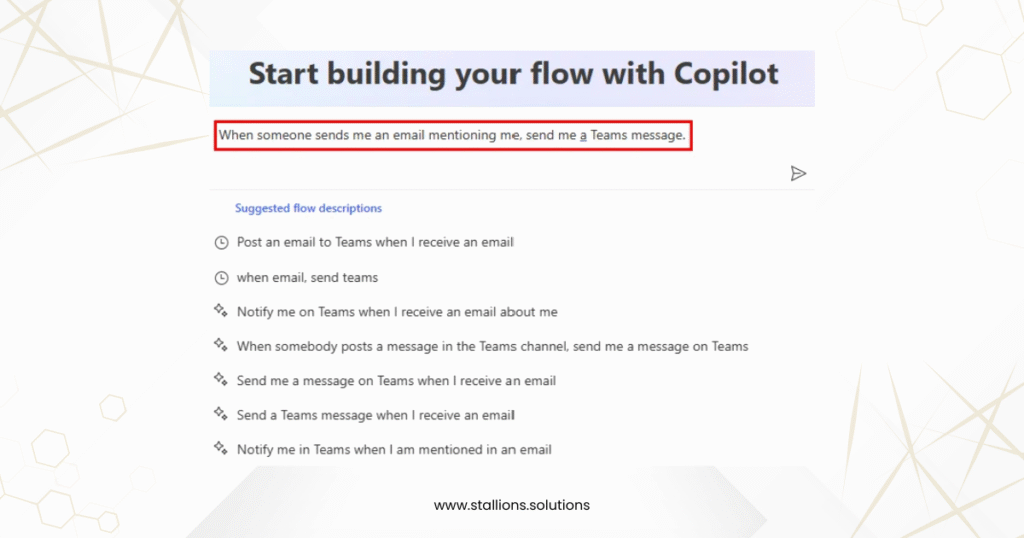
Building a Flow with Copilot: Step-by-Step
Creating an automated flow with Copilot for Power Automate feels like having a conversation not a complicated setup. Whether you’re new to automation or already familiar with Power Platform, Copilot helps you go from idea to execution in just a few steps:
1. Sign in and start Copilot
Log in to Power Automate with your Microsoft account. Copilot is built into your workspace, ready to help you create, edit, or monitor flows.
2. Describe what you want
Tell Copilot in plain language. For example:
“When a new lead is added to Dynamics 365, send a Teams message to the sales group and create a task in Planner.”
Copilot will instantly draft a flow for you.
3. Review the flow
Copilot sets up triggers and connects your apps automatically. You can accept the design or tweak it by adding steps like approvals or conditions.
4. Connect your data
Copilot links your Microsoft 365 and Power Platform data through Dataverse. It picks the right connectors and credentials, so everything runs smoothly.
5. Test and adjust
Run a quick test. If something needs changing, just tell Copilot:
“Send the notification to the marketing team instead.”
It updates the flow instantly.
6. Monitor and improve
After publishing, Copilot tracks performance, suggests improvements, and even helps you add AI features like predictive steps or AI Builder actions.
Automation has never been this easy. With Copilot for Power Automate, you describe what you want, and it takes care of the rest.
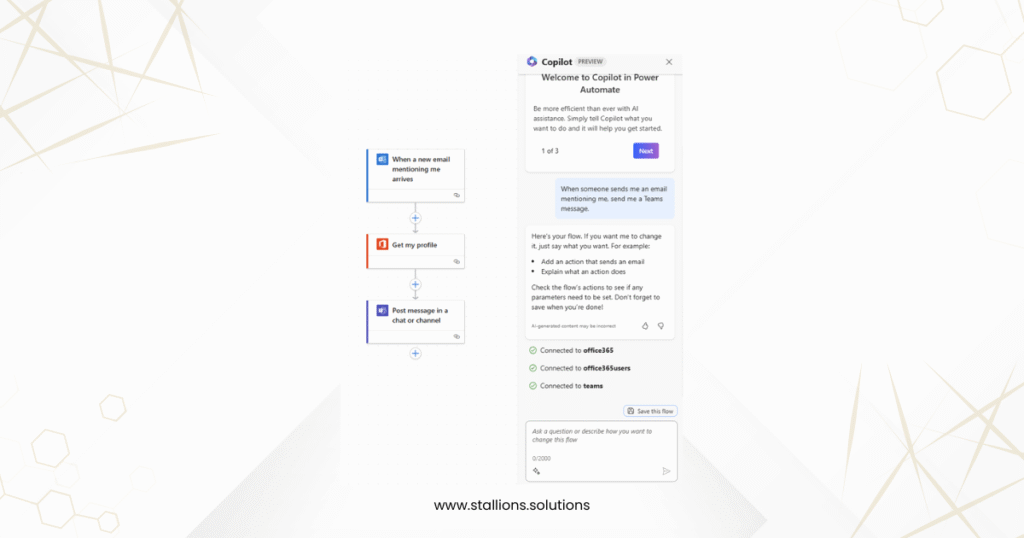
Crafting Effective Prompts for Copilot
Getting the best results from Copilot for Power Automate depends on how you describe what you want. Think of it like giving instructions to a helpful teammate, the clearer you are, the better the outcome.
Tips for writing great prompts:
✅ Start with “When X happens, do Y.”
This makes your intent clear. For example:
“When a new form response is submitted, send an approval request to my manager.”
Copilot knows what to trigger and what action to take.
✅ Be specific about apps and actions.
Instead of saying:
“Send a message when there’s a new task,”
say:
“When a task is created in Planner, send a message in Teams.”
More context = more accurate flows.
✅ Include conditions if needed.
For example:
“When a lead is added to Dynamics 365 with a score above 80, notify the sales manager.”
✅ Experiment and refine.
If the first draft isn’t perfect, tweak your wording or add details. You can even ask Copilot to “try another version” or “add an approval step.”
✅ Ask questions to explore ideas.
You don’t need a full plan before starting. Try asking:
- “What’s the best way to track approvals in Power Automate?”
- “Can you show me how to connect Outlook with SharePoint?”
- “How do I create a recurring reminder every Friday?”
Copilot isn’t just a builder—it’s a collaborator. The more natural your conversation, the better it understands your goals and turns them into smart automations that save time.
Conclusion
Copilot for Power Automate has become a cornerstone of Microsoft’s AI ecosystem, seamlessly connecting data, intelligence, and workflows to help organizations automate with precision and strategy.
Every flow you create is more than just a shortcut, it becomes part of an intelligent system that understands context, monitors performance, and continuously improves. Copilot now supports how businesses think, plan, and deliver, not just how they complete tasks.
At Stallions Solutions, we help teams prepare for this transformation by strengthening data foundations, implementing governance, and enabling AI-driven automation across departments. With Copilot for Power Automate, work becomes smarter, faster, and more connected than ever before.