

This article will guide you through the complete process of setting up a new Application User in Power Platform, including creating an Azure App Registration to connect with the Application User.
Step 1:
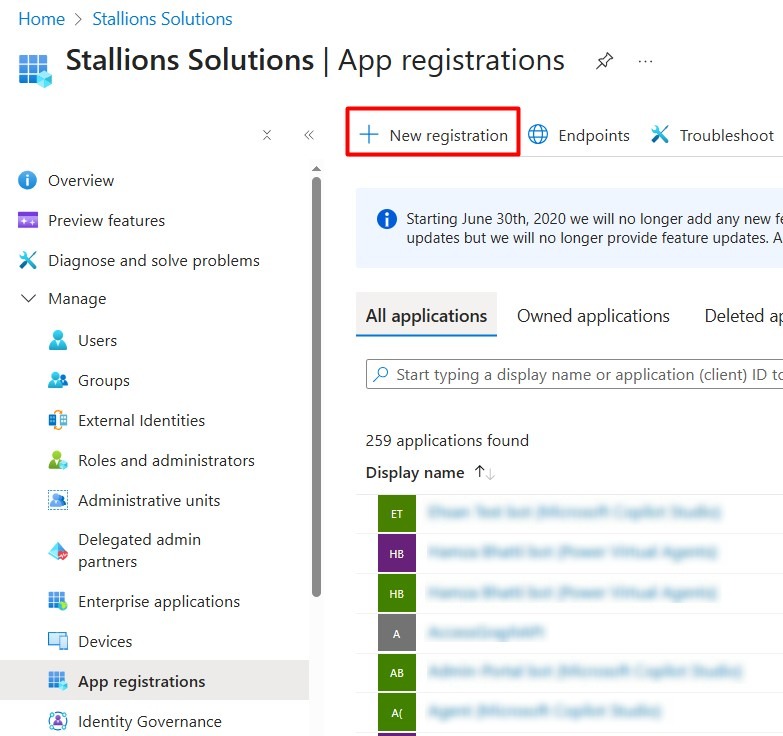
- Register an application in Azure through Azure Active Directory.
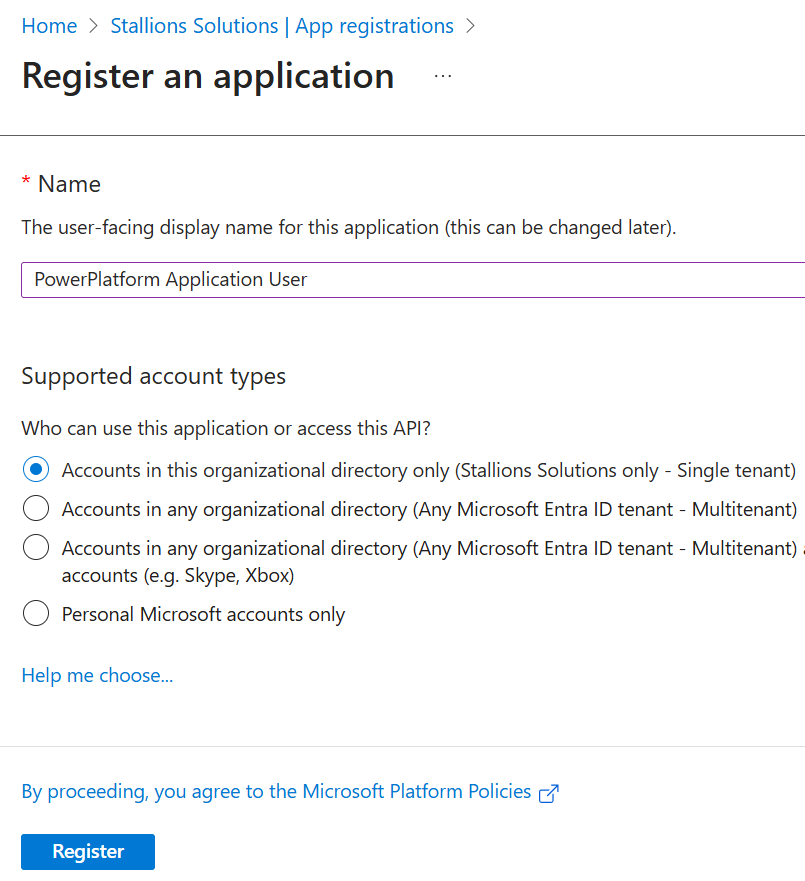
- Enter the Name – this will be used as the user’s name in Power Platform.
- Keep the Supported account type set to Single tenant (default setting).
Step 2:
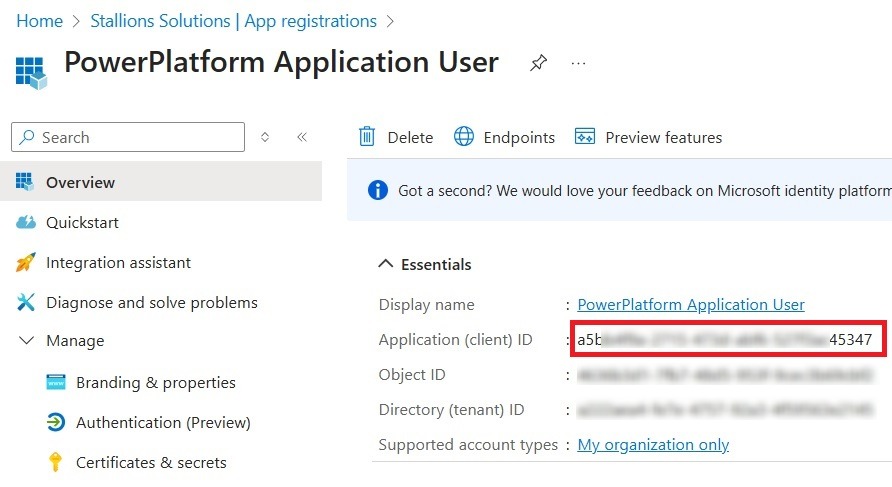
After creating the App registration, copy the Application (client) ID. This will serve as the Client ID for later configuration.
Step 3:
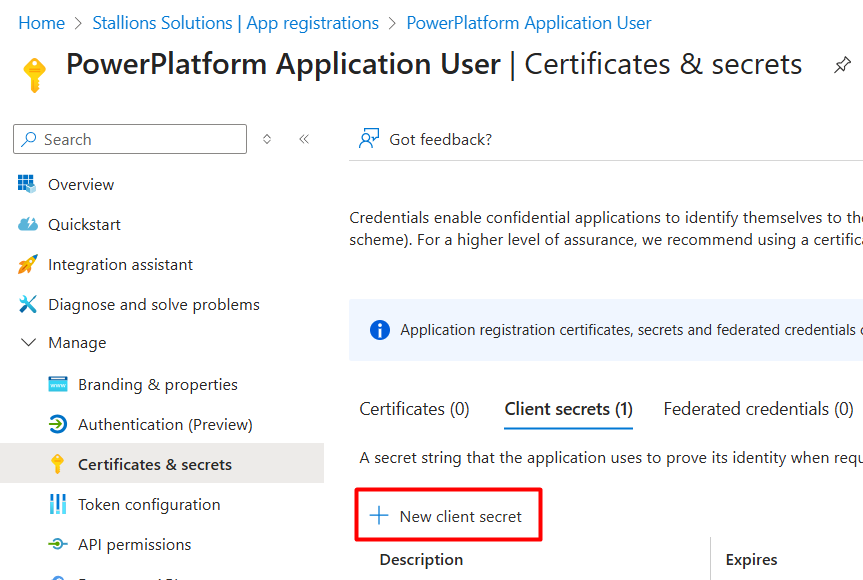
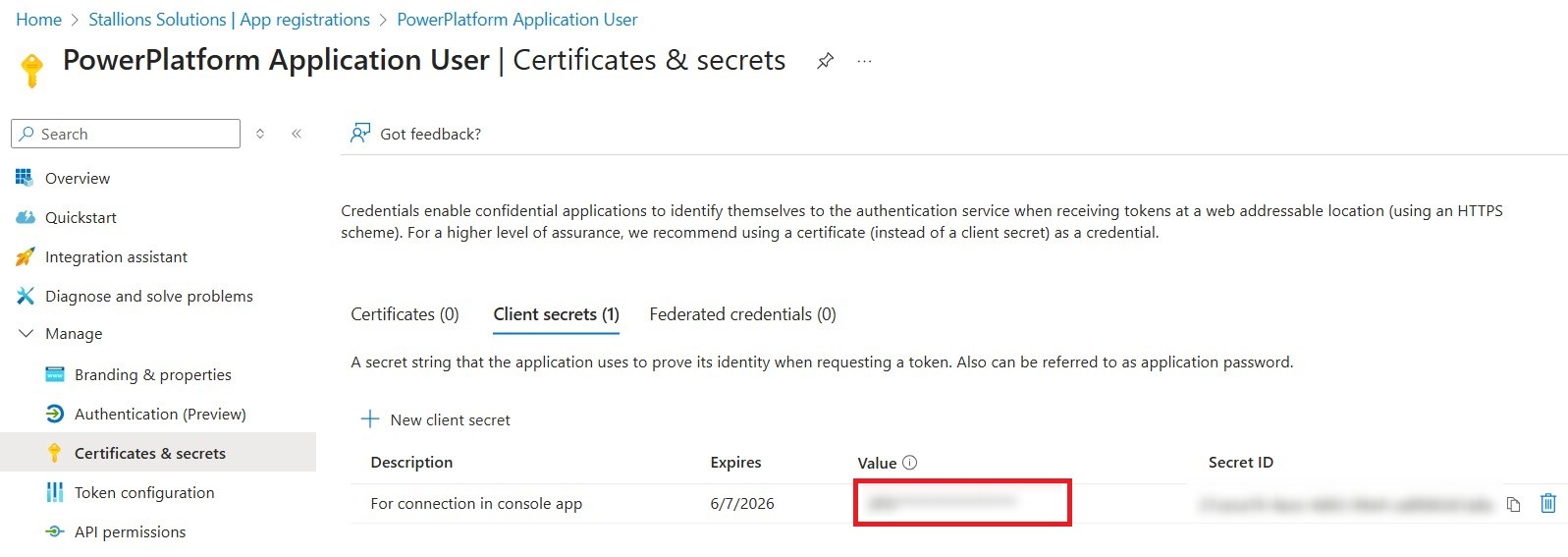
- Go to the Certificates & Secrets section, then under Client secrets, select New client secret.
- Provide a description for the client secret.
- Choose an expiry period for the client secret. The maximum allowed is 24 months.
- After it expires, you’ll need to generate a new secret and update any applications that use it. To prevent service interruptions, it’s a good idea to set a reminder for the renewal.

Step 4:
- After creating the secret, copy its Value. This will be used later as the Client Secret. This is your only opportunity to copy the secret, so make sure to store it securely. If you lose it, you can generate a new one, but you’ll need to update any applications that rely on it.
Step 5:
Go to the API permissions section and click ‘Add a permission’.

Step 6:
When the dialog opens, locate and select Dynamics CRM. In the following dialog, choose “user_impersonation” and click Add permissions to complete the step.

Adding the Application User to Power Platform
Step 7:
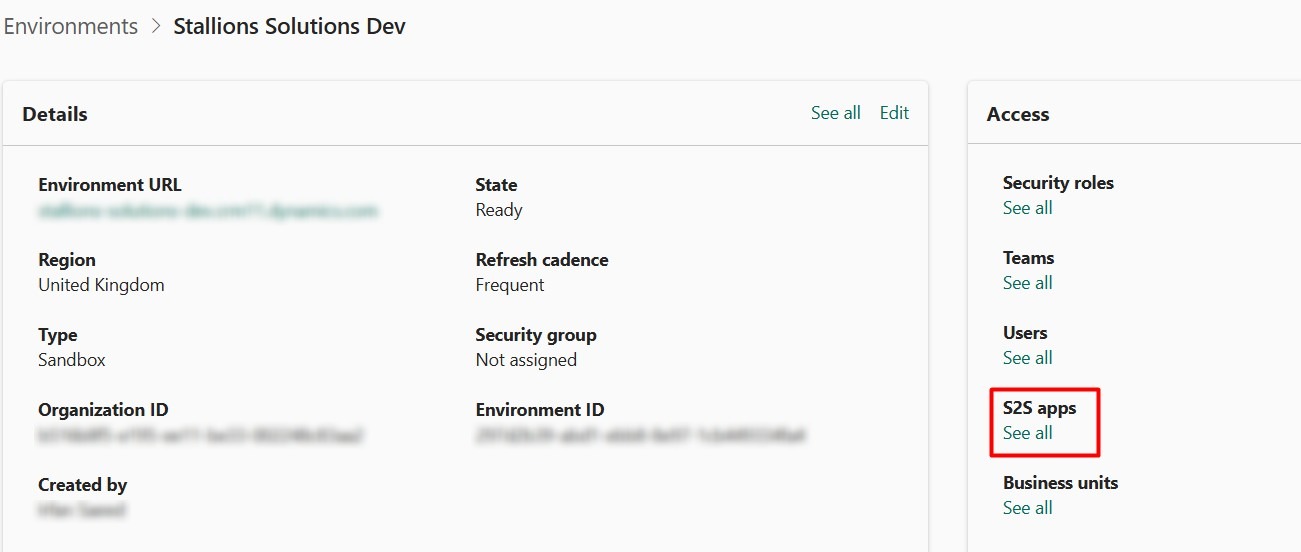
- Open the Power Platform Admin Center as a System Administrator, and select your Power Platform Environment, then select S2S Apps.
Step 8:
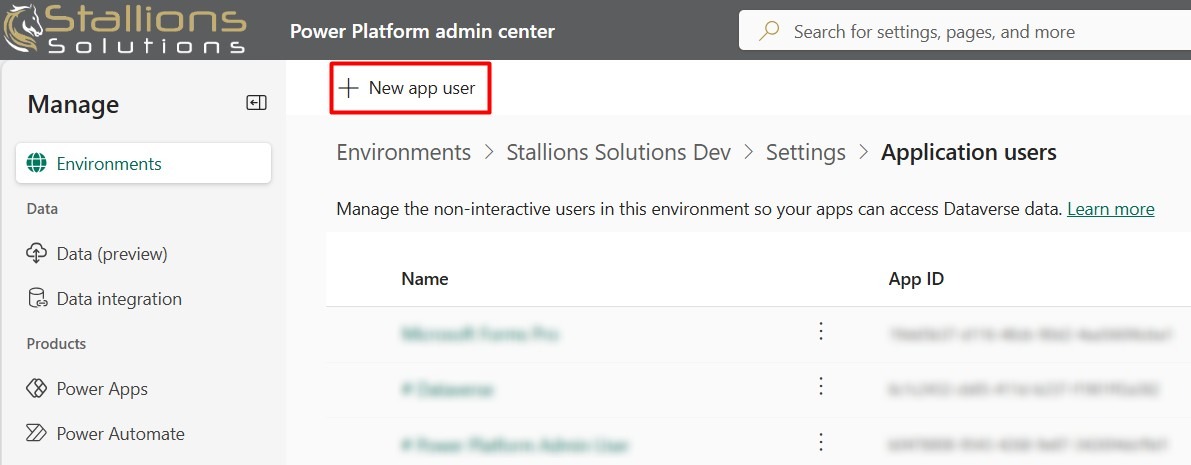
- A screen displaying all Application Users will open. Click “New app user” to proceed.
Step 9:
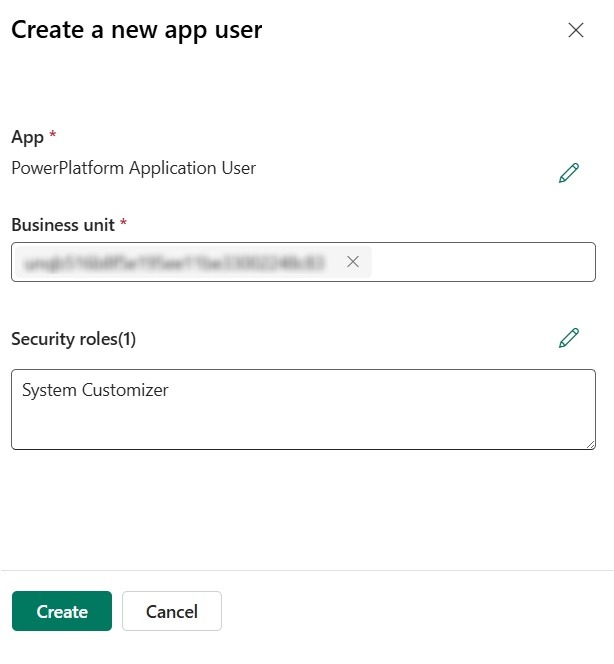
- On the Create a new app user screen, click Add an app.
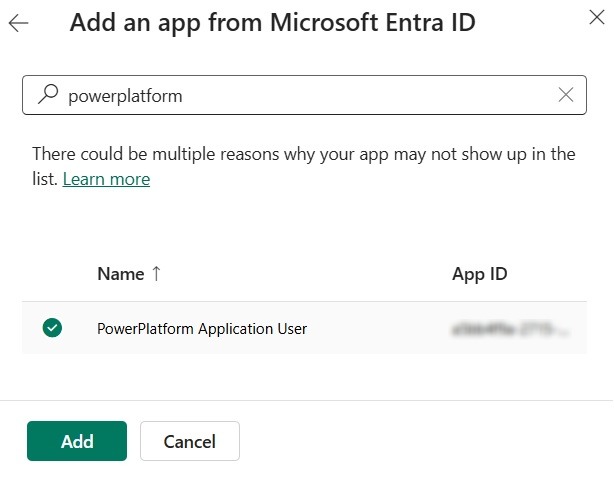
- Use the search box to find your application either by the app ID (client ID) from step 2 or by the app name.
- Select the app and click Add.
Step 10:
- Select the business unit and security roles and click create.
You can now use the Application User’s Client ID and Secret to connect your console apps or services to Dataverse, enabling secure, automated access for API calls or Dataverse operations without interactive login.