

Data is one of your organization’s most valuable assets but only if it’s easy to access when decisions need to be made. In many enterprises, retrieving the right information from ERP systems like Dynamics 365 still means navigating multiple modules and reports.
Microsoft Copilot Studio changes that. By connecting Dynamics 365 entities directly to Copilot, leaders can move from searching to simply asking and get instant, accurate answers.
Instead of drilling through screens, you can query live data conversationally, for example:
- Show all outstanding invoices for Vendor X.
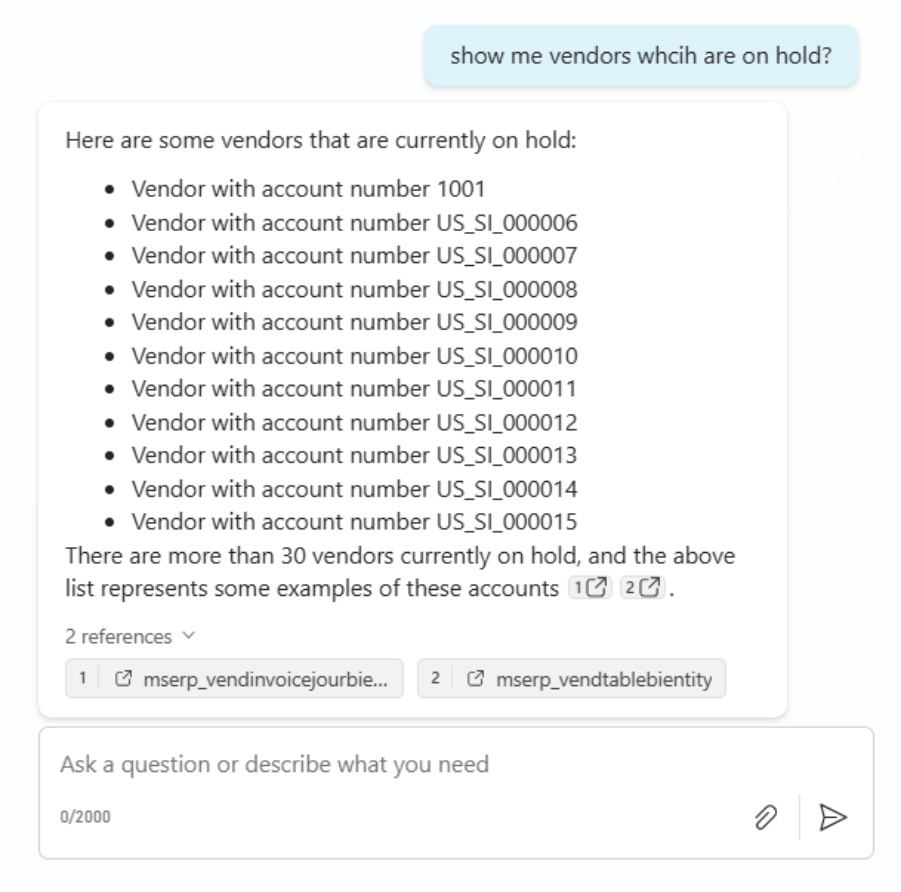
- Which vendors are currently on hold?
- What was the total value of last month’s purchase orders?
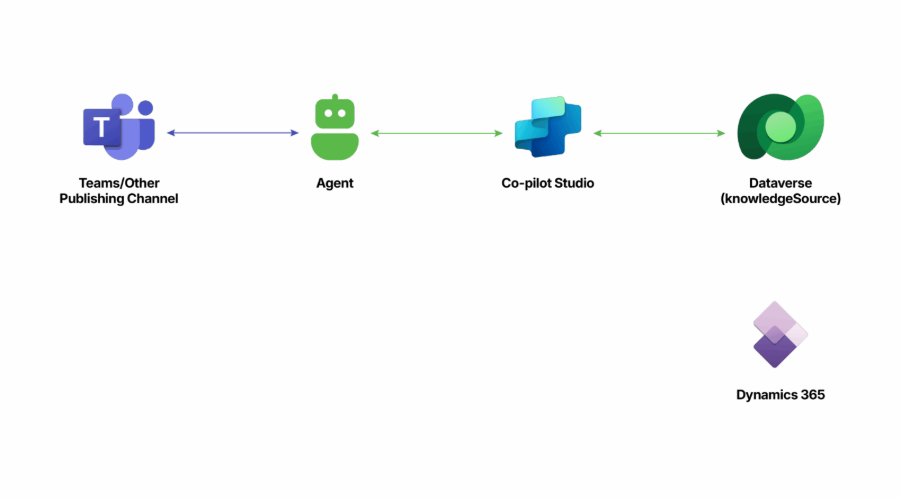
This capability is powered by Dataverse knowledge sources in Copilot Studio, enabling AI agents to pull data directly from Microsoft Dynamics 365 entities whether standard, custom, or restricted. From reviewing supplier performance to tracking expenses, these AI-driven insights provide a faster, smarter way to interact with business data.
For organizations embracing Generative AI in Dynamics 365, this integration is a practical step toward intelligent automation delivering real-time visibility, boosting productivity, and supporting informed, data-driven decision-making.
The Value of Connecting Copilot Studio with Your Dynamics 365 Data
Integrating Microsoft Copilot Studio with your Dynamics 365 data unlocks faster, smarter access to critical business information. Instead of navigating multiple screens or reports, teams can interact with live operational data through simple, conversational queries.
Here’s what this connection delivers:
- Reliable, real-time answers: Copilot pulls data directly from the source system, ensuring accuracy and consistency across departments.
- Conversational simplicity: Users can ask natural questions without technical commands or complex filters.
- Productivity at scale: Eliminating manual lookups and report navigation frees teams to focus on analysis, decision-making, and creating business value.
This integration transforms static enterprise data into a dynamic decision-support layer, giving leaders instant visibility into performance and operations.
Configuring Copilot Studio with Dynamics 365 Data: Steps for Success
Connecting Copilot Studio to your enterprise system is a straightforward process. Once configured, your AI assistant can query live business data and deliver real-time insights across departments.
Step 1: Create or Open a Copilot in Microsoft Copilot Studio
Start by navigating to Copilot Studio. Open an existing Copilot or create a new one — this will serve as your AI agent for interacting with organizational data.
Step 2: Access the Knowledge Section
In the left navigation panel, select Knowledge, then click Add a data source to begin linking your system’s information.

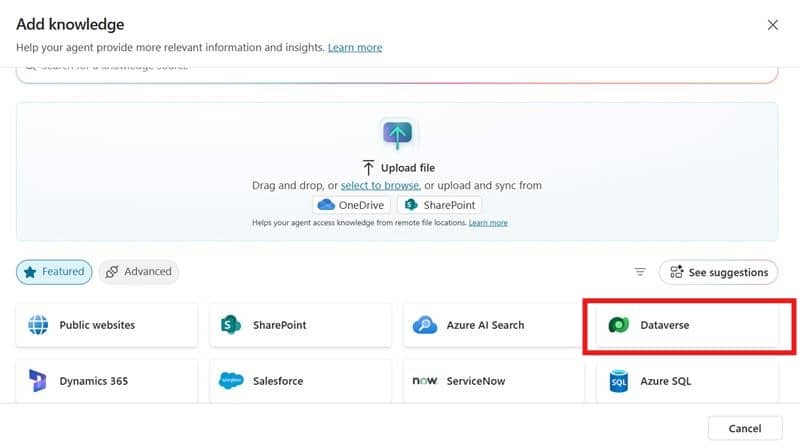
Step 3: Add Dataverse as the Knowledge Source
Select Dataverse as your data source. If your organization uses multiple environments, choose the correct one before proceeding. Click Next to continue.
Step 4: Select and Configure Entities
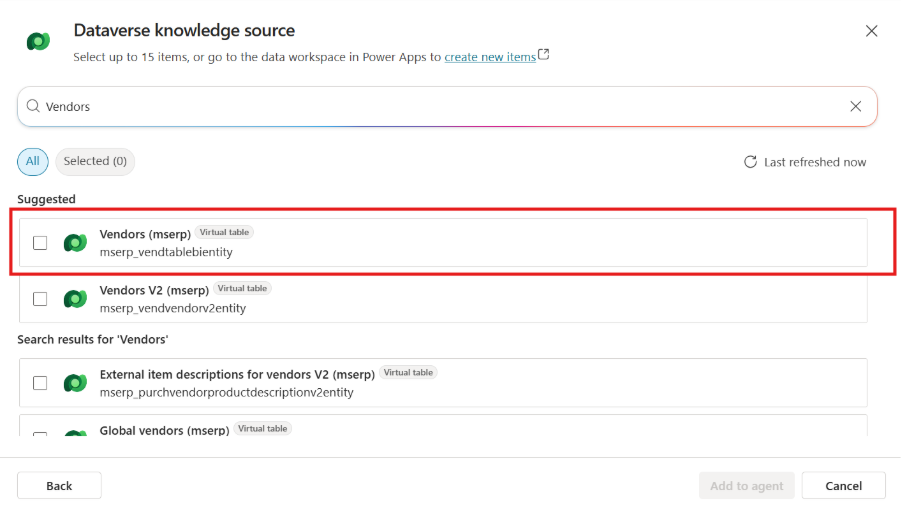
Choose the Dataverse entities you want Copilot to reference — for example, Vendors, Purchase Orders, Invoices, or any custom records relevant to your operations.
Apply filters such as company codes or active record status to ensure the knowledge base reflects accurate, up-to-date operational data.
Step 5: Define Context and Terminology
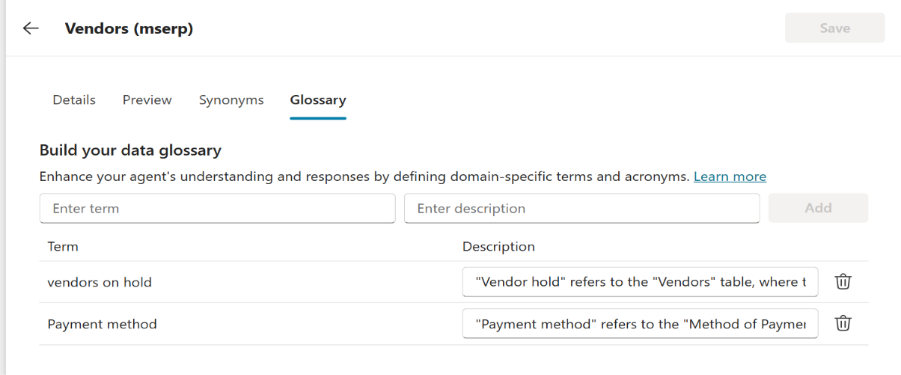
Improve Copilot’s understanding by configuring:
- Glossary entries: Add key business terms for clarity.
- Synonyms: Ensure natural-language phrases are recognized correctly.
- Descriptions: Define entity fields to improve context interpretation.
Example:
“Vendors on hold” → maps to Outstanding Balance
Synonym: blocked supplier
Description: Total unpaid vendor balance
Step 6: Publish and Test the Copilot
Once your setup is complete, publish the Copilot and run test queries to validate accuracy. Try prompts such as:
- “Show vendors currently on hold.”
- “List invoices pending approval.”
Testing ensures that your Copilot understands context, retrieves correct data, and delivers reliable answers before rolling it out to your team.
Enhancing the Experience
After the initial setup, you can extend functionality by:
- Combining standard and custom entities: Bring together financial, procurement, or project data for unified insights.
- Automating workflows: Use Power Automate to enable Copilot to take actions — like sending payment reminders or creating follow-up tasks based on live data.
These enhancements turn Copilot from a simple query tool into a proactive assistant that not only retrieves information but also drives business processes.
Conclusion
Connecting Dynamics 365 entities with Microsoft Copilot Studio isn’t just about creating a chatbot — it’s about enabling smarter, faster decisions. With real-time access to trusted business data, teams can obtain clear answers instantly, without needing to switch between reports or systems. The result? A more connected, informed, and agile organization.
Start the shift from searching to simply asking. Bring your Dynamics 365 data to life with Copilot Studio.
Looking to unlock the full potential of AI in Microsoft Dynamics 365? Stallions Solutions helps enterprises design and implement intelligent solutions that drive measurable impact across finance, operations, and customer engagement.
📩 Reach out at support@stallions.solutions to explore how AI can transform your ERP strategy.