

Model-driven apps in the Microsoft Power Platform provide a structured, efficient approach to managing business data. With the addition of intelligent agents, these apps evolve beyond simple data management becoming smarter, more responsive, and highly effective in supporting users.
In this blog, we’ll explore the two key types of agents available in model-driven apps: autonomous agents and interactive agents. You’ll discover how they drive productivity, streamline automation, and learn practical ways to integrate them into your own model-driven applications.
What Are Agents in Model-Driven Apps?
Agents act as intelligent assistants embedded within your applications. Their purpose is to simplify workflows, respond to user queries, and handle routine operations with ease. Within the Microsoft Power Platform, agents are available in two primary forms:
1. Autonomous Agents
- Built with Microsoft Copilot Studio – autonomous agents are created to operate with minimal user input.
- Automated execution – they perform tasks automatically, reducing the need for manual effort.
- User oversight – while agents run independently, users can still monitor and adjust actions as required.
- Ideal for repetitive, rule-based tasks – they streamline processes that would otherwise consume significant time.
- Example use case – an agent that compiles customer follow-up lists and schedules reminders, removing the need for manual tracking.
2. Interactive Agents
- Focus on communication and engagement – they assist users by responding to natural language queries.
- Configurable with custom topics and knowledge sources – enabling accurate, context-specific answers tailored to your organization.
- Enhance user experience – guide users through processes and provide instant support inside the app.
- Example use case – an in-app assistant that answers questions about internal policies or walks users through multi-step workflows.
Adding an agent to your model-driven app
Model-driven apps can be elevated by embedding autonomous agents that automate tasks and intelligently respond to user inputs. Once configured, these agents can be added directly to your app if specific prerequisites are met.
Use the following step-by-step guide to seamlessly integrate an autonomous agent into your model-driven app.
Before You Start
Before adding an agent, make sure it meets the following requirements:
- It is published and available for use
- Generative AI capabilities are enabled
- At least one trigger is defined
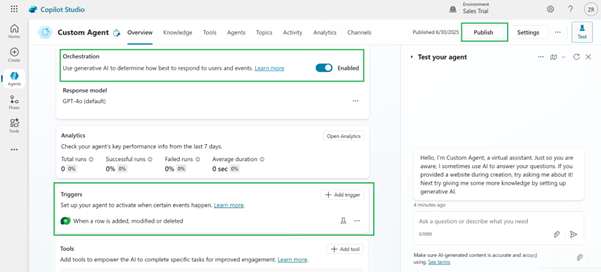
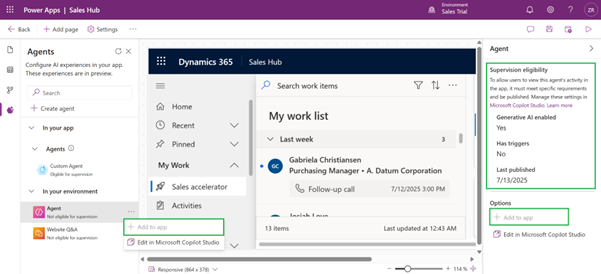
- If the required conditions are not met, the “Add to app” option will stay disabled in the app designer.
- The properties pane on the right displays the agent’s status and outlines all eligibility criteria.
- An agent named Custom Agent has already been created in Microsoft Copilot Studio, with a trigger configured and generative AI enabled.
Steps to Add an Agent
- Sign in to Power Apps
Navigate to the Power Apps portal and go to the Apps section.
- Edit Your Apps
Access the model-driven app where you want to add the agent and click Edit to open it in the app designer.
- Access the Agents Tab
In the app designer, click on the Agents tab to view all agents available in your environment.
- Choose the Agent
From the In your environment dropdown, users can locate and choose the agent they wish to add to the app.
- Add the Agent to the App
Select the three-dot menu (⋯) next to the agent and choose Add to app. This option becomes active only when the agent fulfills all the required conditions.
- Save and Publish
Once added, save your changes, publish, and then play the app to verify the agent has been integrated. Please note that previewing the agent directly in the designer isn’t supported yet.
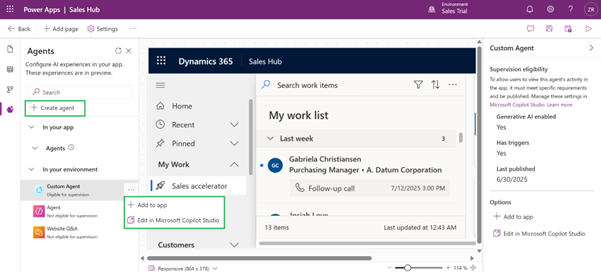
- Edit the agent if required
Open it directly in Microsoft Copilot Studio by choosing Edit in Copilot Studio.
Remove an Agent from a Model-Driven App
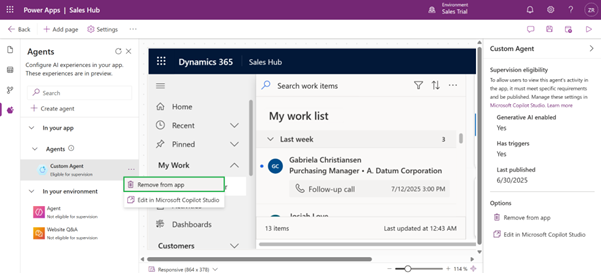
If an autonomous agent is no longer required in your model-driven app, you can remove it without deleting it from the environment.
Simply open the ellipsis (⋯) menu and select Remove from app.
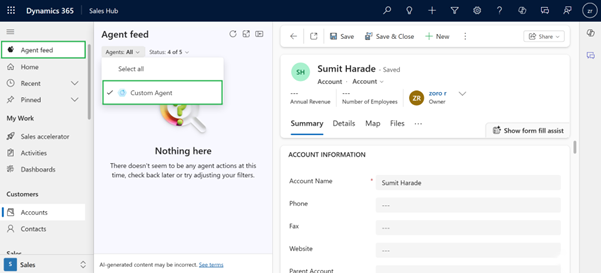
The agent feed appears in the app’s navigation panel, allowing you to add and use multiple agents within a model-driven app as needed. It also provides filtering options based on status, such as In Progress, Dismissed, or Completed by either the user or the agent.
Conclusion
Agents in model-driven apps bring intelligence and efficiency to the way applications operate. By automating routine tasks and guiding users through processes, both autonomous and interactive agents play a vital role in boosting productivity and enhancing the overall user experience. Autonomous agents streamline repetitive, rule-based activities with minimal intervention, while interactive agents improve communication by responding to natural language queries and offering context-specific guidance. Together, they transform model-driven apps into smarter, more responsive tools that empower users and make business operations more seamless.